Friday, April 30, 2010

4 OS X Screenshot Tools

4 OS X Screenshot Tools: "

Taking screen captures in OS X is pretty simple and powerful. Today I’ll explain how to use the built-in screen capture functionality, the included application Grab, and a couple of third-party options that offer extra functionality.


Built-in OS X Functionality


  • Command + Shift + 3

    This keystroke results in a full screenshot and saves the resulting file as a PNG, to your desktop. The file is named with the date and time it was captured.


  • Command + Shift + 4

    Pressing these keys initially brings up a cross hair on screen that displays the coordinates of the cursor. Click and drag to select the area you want to capture. When you release the mouse button, the capture will be saved to the desktop as previously mentioned.

    If you press the spacebar while the crosshairs are visible, it changes into a camera icon that you can position over a specific window that you may wish to capture. (That window must be visible when you initiate the keystroke.)

    During both modes you may hold the Control key at the time of capture. Doing so will save the resulting shot to the clipboard rather than a file on the desktop.


Grab


The Grab application resides in the /Applications/Utilities folder. It’s pretty simplistic, and essentially duplicates the functionality of the built-in OS X feature, albeit, with a couple of small differences. After you’ve taken the screenshot, it is displayed for you to review at which time you must explicitly save it, if it is indeed what you wanted. This also allows you to choose where you’re going to save the file. There’s a Preferences window where you can choose from eight cursor images to be captured in the resulting image. Otherwise, things are pretty much the same. The keystrokes are different, as you’ll see next.


  • Command + Shift + A

    This keystroke results in a crosshair on screen that displays the coordinates of the cursor. Click and drag to select the area you want to capture.


  • Command + Shift + W

    This keystroke allows you to move windows around to select the one you’d like to capture.


  • Command + Z

    This keystroke results in a full screenshot.


  • Command + Shift  + Z

    This keystroke results in a full screenshot after a 10 second timer elapses.


Skitch


Skitch is developed by the rockstars at Plasq. It’s super powerful and really easy to use. You get to edit size, crop, draw nondestructively, there’s multi-format export, web upload, copy to clipboard, review history and much more. The best part is, it’s 100% free to use!


  • Command + Shift + 5

    Pressing this keystroke brings up the (now familiar) crosshairs to select the region of the screen you wish to capture. The image is then opened into Skitch for further editing and use — this is the same for each key combo.


  • Command + Shift + 6

    This keystroke results in a full screen capture.


  • Command + Shift + 7

    This keystroke brings up a frame that you can resize to capture a portion of the screen. Initially this may seem to be the same as the crosshair — the difference is, the frame retains its dimensions each time, allowing you to capture uniform shots multiple times.


LittleSnapper


LittleSnapper is developed by RealMac Software. It approaches screenshots from an iPhoto perspective, allowing you to catalog, group, and tag your shots for later use. There’s a built-in browser for grabbing all or a portion of a webpage. The export feature allows you to save a webpage to a PDF file, or any screen capture to multiple image formats. There’s also an editor for tweaking the shots once you’ve captured them. With all this functionality comes a price — it’s $39. There’s also a free trial to see if it’s a good fit for you.


  • Command + Option + 3

    This keystroke produces a full screen capture. Once captured, it is loaded into the LittleSnapper gallery for further editing and use — this behavior is consistent with all key combos.


  • Command + Shift + Option + 3

    Similar to Grab, this gives you a short timer before the full screen image is captured.


  • Command + Option + 4

    This keystroke gives you the crosshairs to choose the region of the screen to capture.


  • Command + Option + 5

    This keystroke captures a specific window on screen. At least a portion of the window must be visible before initiating the keystroke.


So depending on your screenshot needs, there’s an app for that (sorry, I couldn’t help myself). The built-in tools are great and produce nice results. I personally opt for Skitch almost daily as it provides the level of control I need, but can see where something like LittleSnapper would be ideal for the designer types. There are plenty of other options out there too, if you want to get your Google on. But hopefully we’ve armed you with a little more knowledge today, to get that perfect screenshot the next time you need one.


"

Friday, April 16, 2010

How to Back Up and Play Your Wii Games from an External Hard Drive [How To]

How to Back Up and Play Your Wii Games from an External Hard Drive [How To]: "
Connecting an external hard drive to your Wii to backup and play your games is a simple way to keep expensive discs out of harms way, decrease game load times, and organize your collection with swanky cover art. Here's how it works. More »


"

Monday, April 12, 2010

Why a Bad Economy Is the Best Time to Start a Business

Why a Bad Economy Is the Best Time to Start a Business: "

A guest post by Adam L. Penenberg


While researching my latest book, Viral Loop, an in-depth look at how companies like Facebook, Twitter, Flickr, Skype and others grew so big so fast, it occurred to me that each of them was founded when the economy was flat, bad, or worse, in recession. I suppose that describes virtually any company founded since the dot com bust, but what’s interesting is that it also characterizes some of the most successful companies in history, some that trace their roots back more than a century.


Since 1851, the US economy has been in periods of contraction roughly one-third of the time, yet sixteen of the blue-chip companies that comprise the Dow 30 were founded during recessions and almost 60% of Fortune 500 companies began business in a bear market, according to a June 2009 report from the Ewing Marion Kauffman Foundation. Proctor & Gamble survived the panic of 1837, then the worst recession in our young nation’s history, while General Electric came out of the economic chaos of 1872 and Hewlett Packard was born in the Great Depression. McDonald’s fried its first french fry just before the onset of World War II. Charles Schwab sprouted out of the early 1970s as rampant inflation threatened to get out of control.


Of course, there are many more. Home Depot, Microsoft and Apple emerged from the depressive Carter Administration when stagflation choked the American economy. Verizon (originally Bell Atlantic), Adobe, Compaq, Lotus, Silicon Graphics to Sun, withstood the recession of 1982. And as I noted above the dot com bust of 2000-2001 didn’t prevent MySpace, Facebook, Twitter, and a host of other social media companies to achieve billion-dollar valuations in the span of a few years.


Why, though? After all, venture capital investment dips dramatically when the economy hits rough patches, which means there’s much less money available for startups. In 2000, the high point, investors anteed up more than $100 billion into startups. By 2008, that number had dropped by almost three-fourths to $27 billion, and in 2009 it plummeted to less than $20 billion, about the same level as 1998. Nevertheless it appears that money is spent more wisely. Dot com excesses—startups with scant business plans and which spent millions on forgettable Super Bowl ads —were borne of cheap money (insert usual snide reference to pets.com). When the economy is tight, however, investors gravitate to companies with well-articulated revenue plans.


This hasn’t been lost on some entrepreneurs. When Amit Chatterjee approached venture capital firm Kleiner Perkins in late 2007, the economy was limping along with a growth rate of 0.6 percent, capping its worst year in half a decade. But Chatterjee, who was trying to get his green startup off the ground, wasn’t fazed. In fact, he was encouraged. Because he knew that when the economy is at its worst is often the best time to start a company. Chatterjee says he even trumpeted this in his pitch to Kleiner. What’s more, he told the VCs it could very well work to their benefit.


“We were built to survive a recession while guys funded during the up market weren’t,” Chatterjee says, “Venture capitalists gave us extra due diligence and we had to be singularly focused on providing value to customers.” His company, Hara, based in Redwood City, CA, provides environmental and energy management software and support for businesses intent on lowering their carbon footprint and energy consumption. In business for a little more than a year, Chaterjee counts Coca-Cola, News Corp., Aerojet, Intuit and the City of Palo Alto as customers.


Businesses like Hara are able to parry the economic forces arrayed against them and turn them into advantages. It’s not one big thing. It’s a lot of little things that add up. Higher unemployment means it’s cheaper to attract and retain top talent. Office rents are lower, which lessens overhead, and suppliers can be squeezed. Management is freed from a steady parade of analysis calls and reporter interviews to focus singularly on their customers, core products and revenue generation. Investment money is used more efficiently; there’s much more of emphasis on operating lean and mean. And there are other benefits. Job creation in startups founded during shaky economic periods is “less volatile and sensitive to downturns than job creation in the entire economy,” the Kaufman report states.


While it’s true that many of the approximately half a million new startups founded between 2008 and 2009 will ultimately fail, it’s equally true that another generation of great high-growth companies will not only emerge from the recent economic meltdown, but perhaps, in some part, because of it.


But you’d better get started. The economy may be recovering.


Adam L. Penenberg is author of Viral Loop: From Facebook to Twitter, How Today’s Smartest Businesses Grow Themselves and a journalism professor at the Arthur L. Carter Journalism Institute at New York University.


"

Thursday, April 08, 2010

How to Jailbreak Your iPhone 3GS 3.1.3 Firmware Using PwnageTool

How to Jailbreak Your iPhone 3GS 3.1.3 Firmware Using PwnageTool: "

If you just recently updated to the iPhone 3.1.3 (3GS) firmware and really want to install those Cydia applications. This is how you can easily jailbreak your iPhone using a Mac.


How to Jailbreak Your iPhone 3GS 3.1.3 Firmware Using PwnageTool


How to Jailbreak Your iPhone 3GS 3.1.3 Firmware Using PwnageTool


Create a folder named “Pwnage” on the desktop. Now you’ll need couple of things for the jailbreak process .First download PwnageTool 3.1.5, found here or here.


Next step is to download iPhone 3GS firmware – 3.1.3 (3GS): iPhone2,1_3.1.3_7E18_Restore.ipsw


Make sure you have download the ipsw using your Firefox browser, otherwise Safari would auto extract the file rendering it useless.


How to Jailbreak Your iPhone 3GS 3.1.3 Firmware Using PwnageTool


Now double click the PwnageTool 3.1.5 and copy the PwnageTool to your “Pwnage” folder on the desktop.


How to Jailbreak Your iPhone 3GS 3.1.3 Firmware Using PwnageTool


Step 3.


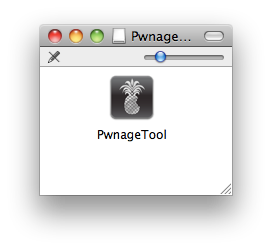
Now double click launch the PwnageTool application.


How to Jailbreak Your iPhone 3GS 3.1.3 Firmware Using PwnageTool


Step 4.


Now click on Expert mode on the top menu bar


How to Jailbreak Your iPhone 3GS 3.1.3 Firmware Using PwnageTool


Step 5.


Click on iPhone 3GS , checkmark will appear after you have clicked.


How to Jailbreak Your iPhone 3GS 3.1.3 Firmware Using PwnageTool


Step 6


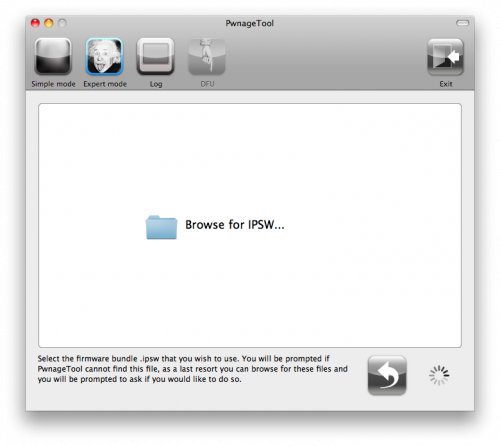
After clicking on the blue arrow, You will be brought to the “Browse for IPSW” page. Word of caution make sure you have dismounted your Windows partitions before accessing the page, otherwise you can always browse for the ipsw.


How to Jailbreak Your iPhone 3GS 3.1.3 Firmware Using PwnageTool


Step 7.


Now click to select the found IPSW file, a checkmark will appear. Now click on the blue arrow to continue to the next page.


How to Jailbreak Your iPhone 3GS 3.1.3 Firmware Using PwnageTool


Step 8.


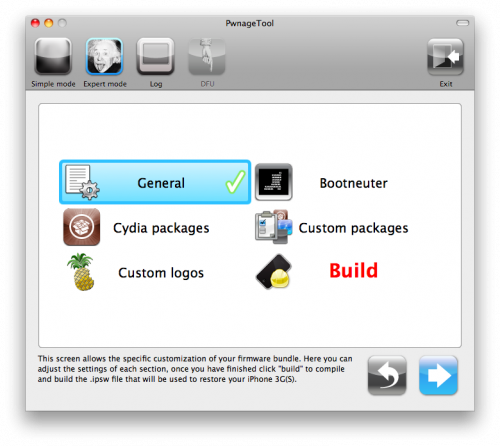
In the next menu you’ll be presented with 7 choices, select General and click on the blue arrow to continue.


How to Jailbreak Your iPhone 3GS 3.1.3 Firmware Using PwnageTool


Step 9


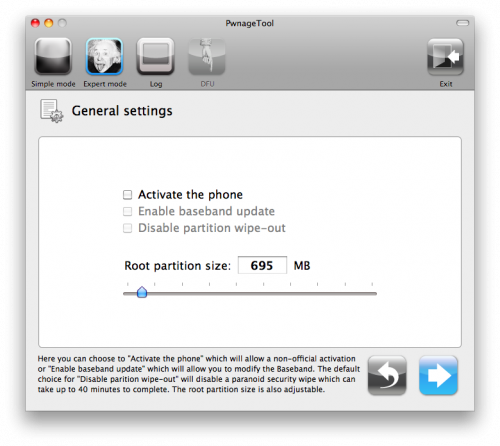
Under the General menu you can increase or decrease the size of the root partition. As this is a jailbreak tutorial we won’t select the “Activate the phone”


How to Jailbreak Your iPhone 3GS 3.1.3 Firmware Using PwnageTool


Step 10


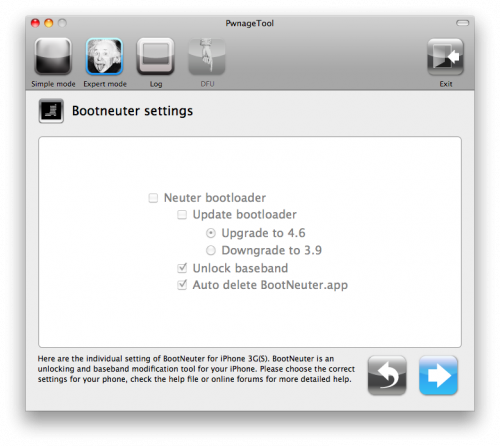
In the next menu, Bootneuter settings are greyed out since haven’t selected the “Activate the phone” setting in the General menu. Click on the blue arrow to continue.


How to Jailbreak Your iPhone 3GS 3.1.3 Firmware Using PwnageTool


Step 11.


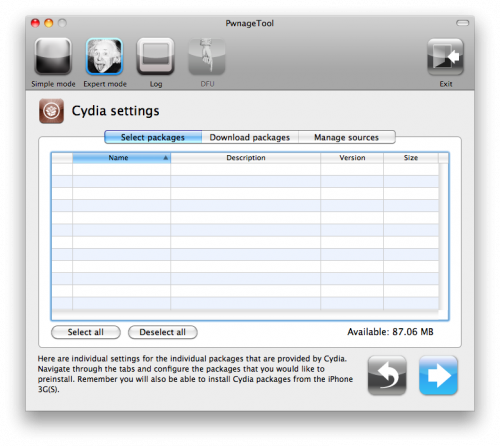
Now the Cydia settings menu allows you to create custom packages so you do not have to manually install the necessary them later.


How to Jailbreak Your iPhone 3GS 3.1.3 Firmware Using PwnageTool


Step 12


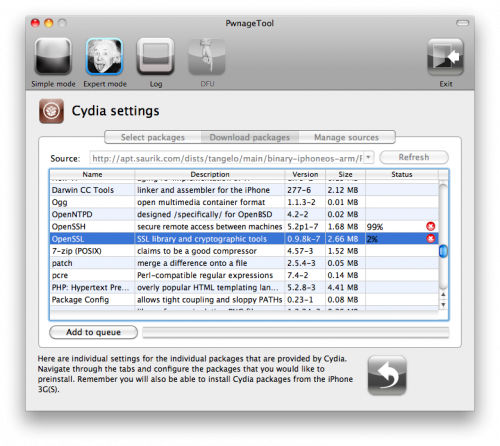
Click on the Download packages tab. Click the refresh button to display the available packages. Double clicking the package you want will download it and make it available in the Select Packages tab.


How to Jailbreak Your iPhone 3GS 3.1.3 Firmware Using PwnageTool


Step 13.


Now checkmark the ones you want then Click the blue arrow button to continue.


How to Jailbreak Your iPhone 3GS 3.1.3 Firmware Using PwnageTool


Step 14.


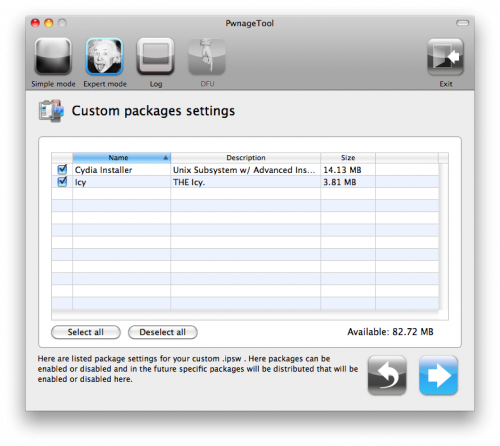
Custom packages displays the listed packages that you have selected previously for the custom ipsw. Now click on the blue button to continue.


How to Jailbreak Your iPhone 3GS 3.1.3 Firmware Using PwnageTool


Step 15.


Now in the Custom Logos menu you can use you logos for the recovery and logon screen.


How to Jailbreak Your iPhone 3GS 3.1.3 Firmware Using PwnageTool


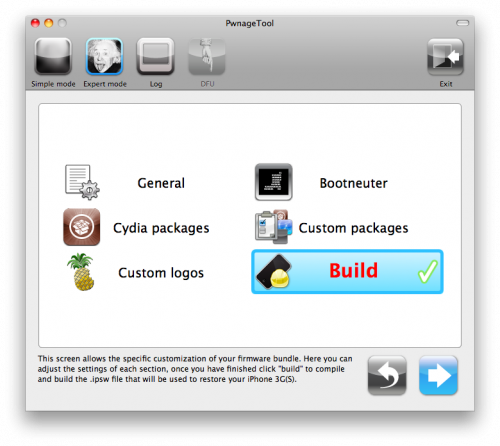
Step 16


If you are ready lets start the pwnage process! Click the Build button to select it then click the Blue arrow button to begin.


How to Jailbreak Your iPhone 3GS 3.1.3 Firmware Using PwnageTool


Step 17.


Now PwnageTool will ask you to save your custom .ipsw file. Save it to your Pwnage folder you created on your Desktop.


How to Jailbreak Your iPhone 3GS 3.1.3 Firmware Using PwnageTool


Step 18.


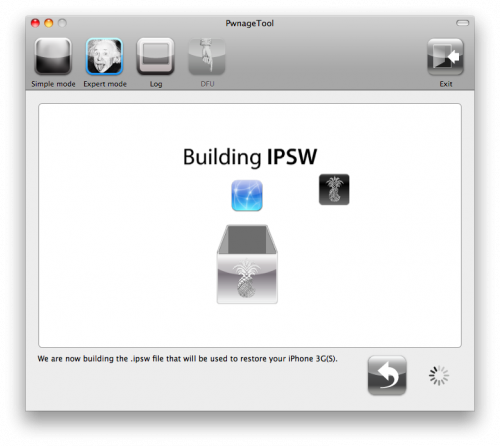
Building the ipsw will take about 10 to 15 minutes . Make yourself a cup of coffee or popcorn!! :)


How to Jailbreak Your iPhone 3GS 3.1.3 Firmware Using PwnageTool


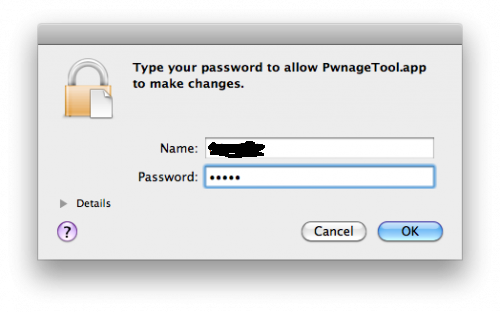
You will be asked to enter your administrator password. Enter your login ID and pass ,then click the OK button.


How to Jailbreak Your iPhone 3GS 3.1.3 Firmware Using PwnageTool


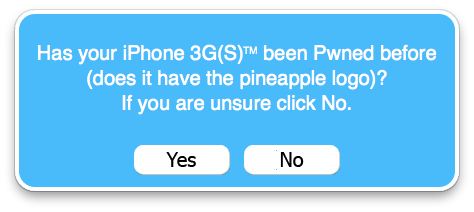
You will be asked if your iPhone has been pwned before. If unsure click the NO button.


How to Jailbreak Your iPhone 3GS 3.1.3 Firmware Using PwnageTool


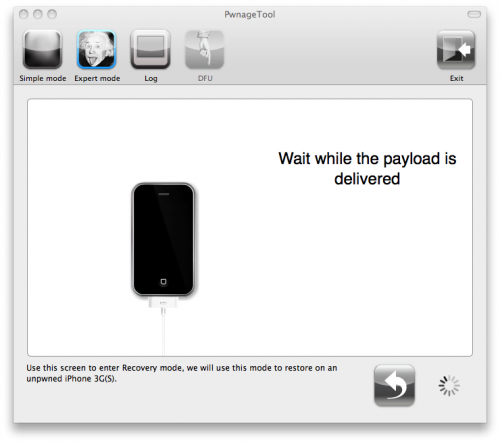
Now connect your iPhone if it isn’t already connected to the computer.


How to Jailbreak Your iPhone 3GS 3.1.3 Firmware Using PwnageTool


After delivering the payload PwnageTool will have placed your iPhone in recovery mode. Click OK to close the popup message telling you this.


How to Jailbreak Your iPhone 3GS 3.1.3 Firmware Using PwnageTool


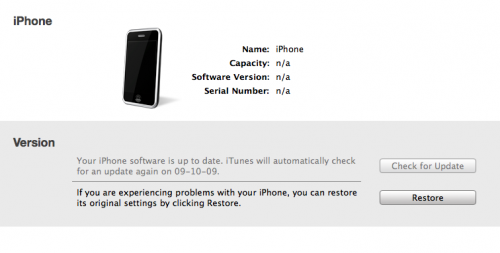
iTunes will show a pop-up saying it has detected an iPhone in recovery mode.


How to Jailbreak Your iPhone 3GS 3.1.3 Firmware Using PwnageTool


How to Jailbreak Your iPhone 3GS 3.1.3 Firmware Using PwnageTool


In iTunes, hold the Alt/Option key and click Restore.


How to Jailbreak Your iPhone 3GS 3.1.3 Firmware Using PwnageTool


Browse to the Pwnage folder on your desktop using the dialog window, Select the custom IPSW that was created (iPhone2,1_3.1.3_7E18_Custom_Restore.ipsw) and click the Open button.


How to Jailbreak Your iPhone 3GS 3.1.3 Firmware Using PwnageTool


iTunes will take upto 10 minutes to restore the firmware. Once done you will be rebooted into jailbroken iPhone 3GS OS 3.1.3! Enjoy


"